
Batch Table View
The batch table is where you spend your day. It should work like a tool you own, not a screen you tolerate. It expands to fill your monitor, the columns go where you put them, and the widths are yours to set.
Use the Monitor You Paid For
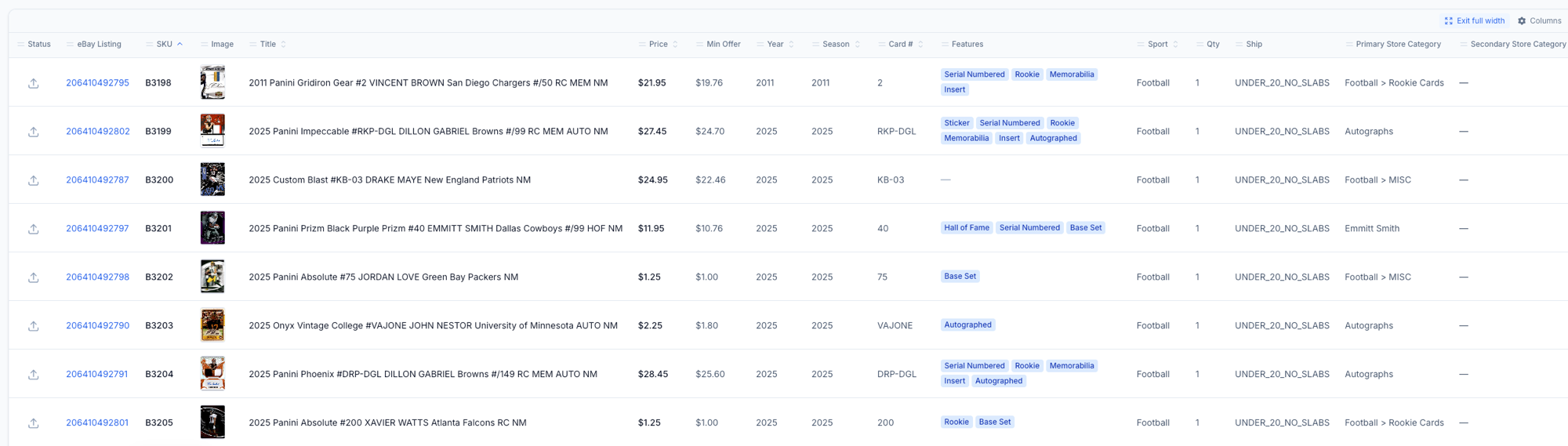
The batch table now expands to fill the available screen. If you run a 27-inch monitor, you get a 27-inch batch table — not a fixed-width column of cards floating in the middle of it with a foot of white space on either side.
More cards visible per screen means less scrolling between the card you’re editing and the one you need to check against it.
Click image to view full size
Put the Fields You Check First, First
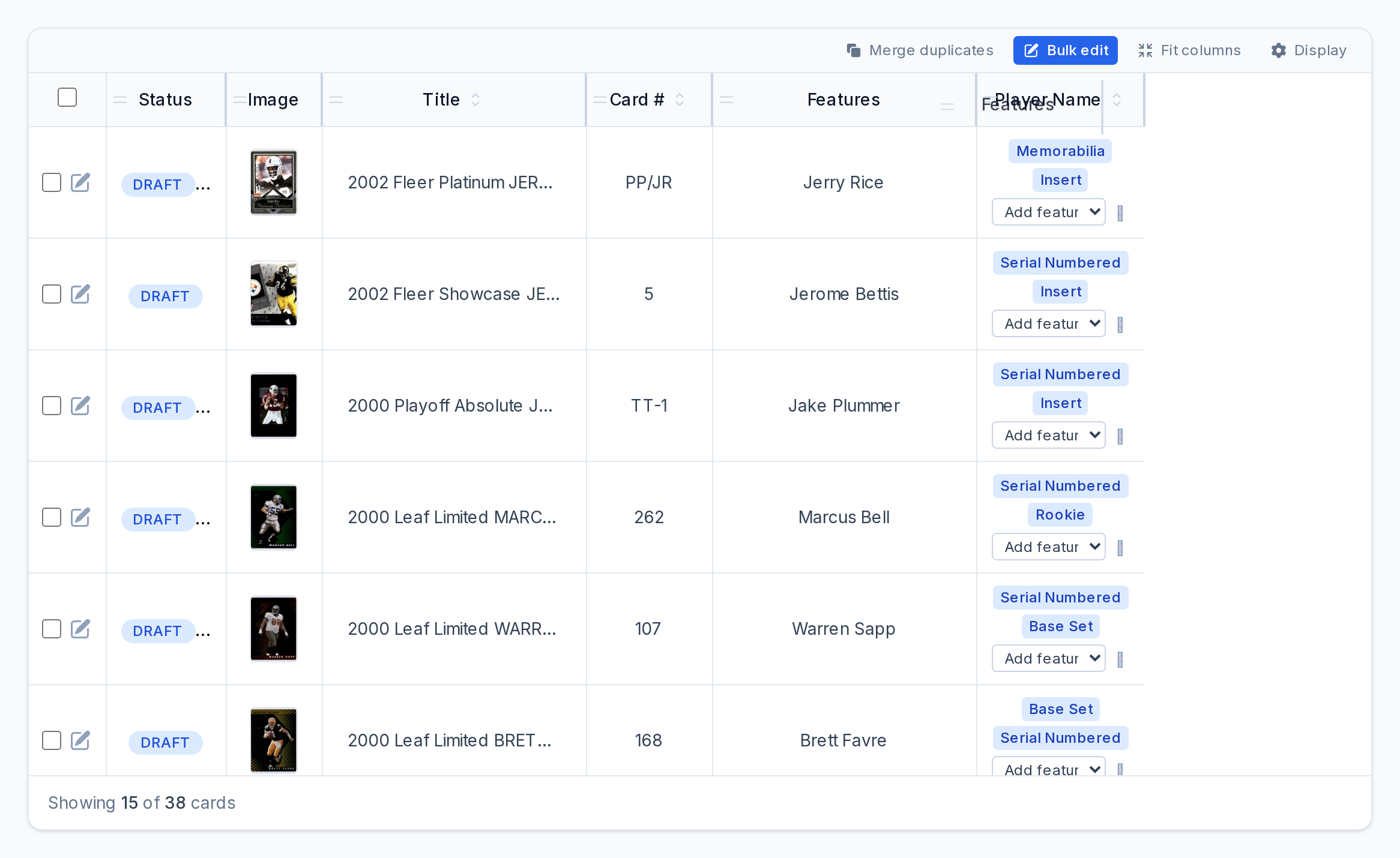
Drag columns into the order you want. Everyone works differently — some sellers scan the title first, some go straight to price, some live in the SKU column. The default order is a guess. Yours isn’t.
Set it once and it holds. The table opens the way you left it, batch after batch.
Click image to view full size
Column Widths That Fit the Data
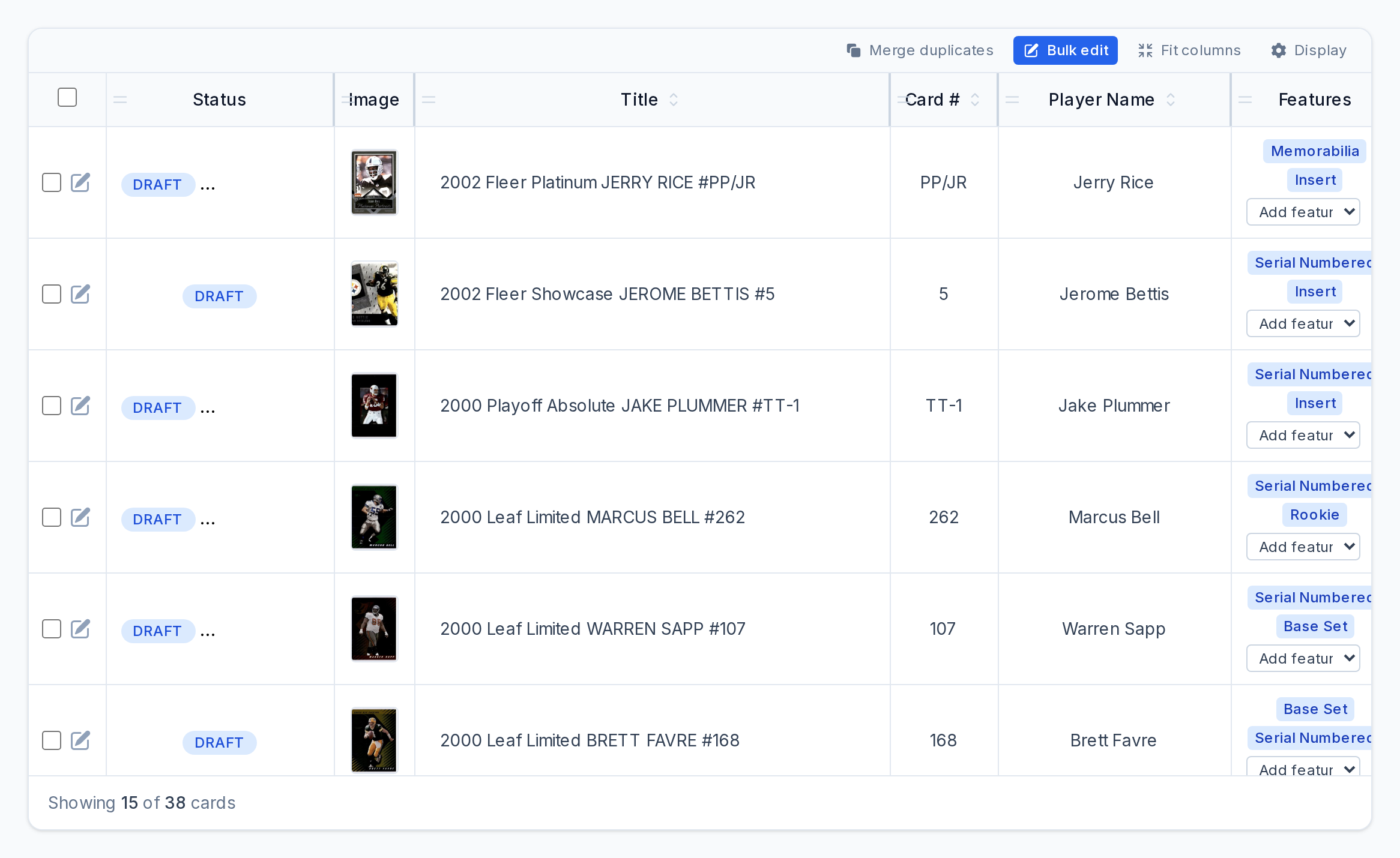
CardLuma sizes column widths automatically to fit what’s in them — or you set them yourself and it stays put.
An eBay title runs up to 80 characters. Reviewing one through a two-inch window, four words at a time, is how mistakes get published. Give the title column the room it needs, squeeze the columns you rarely read, and check your work at a glance instead of a squint.
Click image to view full size
Features, Set Once and Pushed to the Batch
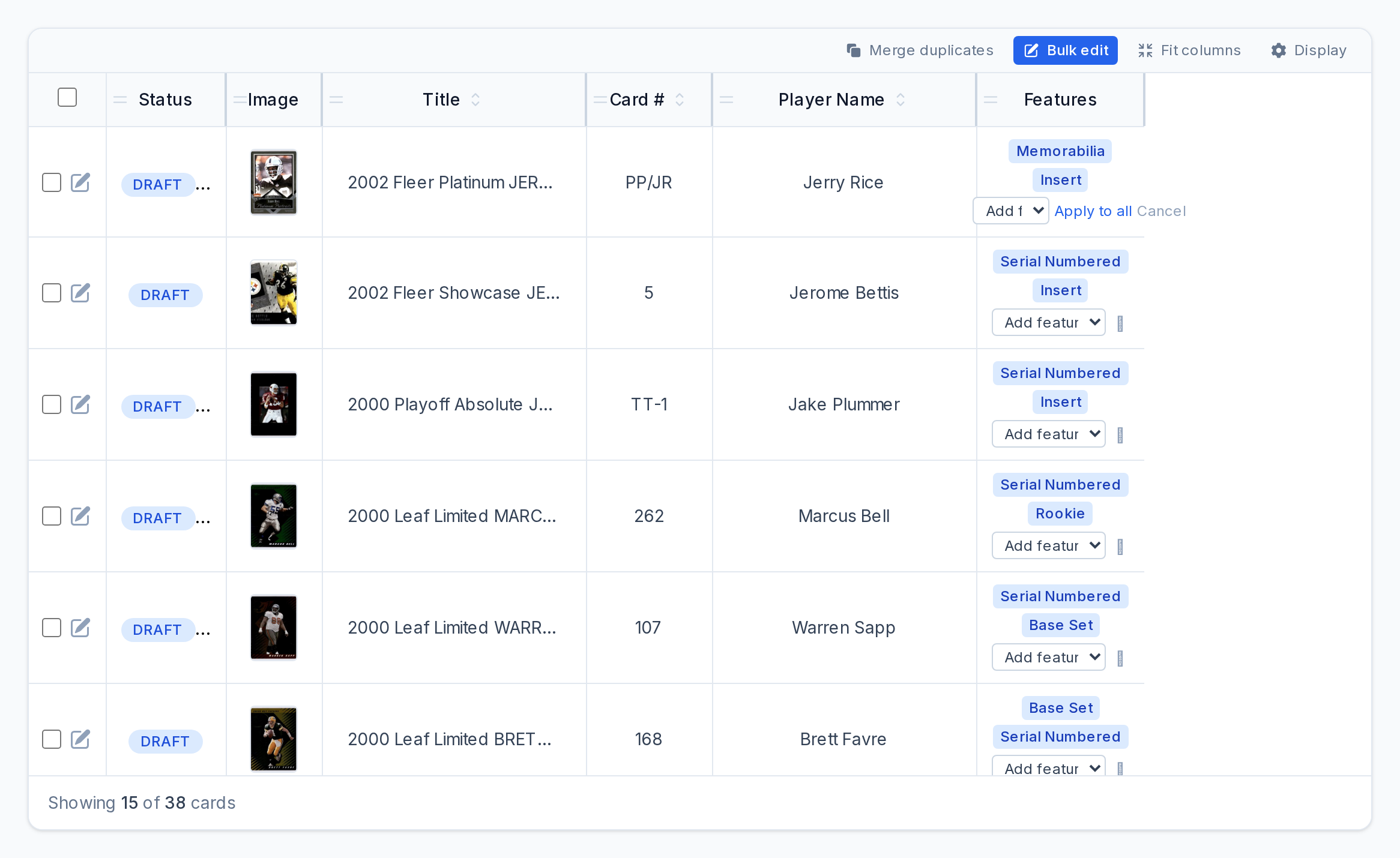
Add Features to a card — Rookie, Serial Numbered, Autograph, whatever the batch calls for — and copy them to every card straight from the batch table. Same move as Copy to All on Price and Quantity.
Click image to view full size
Complete listings, without the cleanup.
Turn scans into eBay-ready listings with the specifics buyers filter on, then reuse clean card data in Whatnot workflows.