
Identify cards against up-to-date sports & TCG data.
Pricing blind costs you both ways — money left on the table, or cards that sit dark. CardLuma pulls live eBay sold comps and active listings right into the card edit screen, for sports cards and trading card games alike.
Price the Card While You’re Looking at It
Guessing a price means opening a new tab, searching the card, sorting by sold, and squinting at thumbnails — for every card. Skip it and you either underprice good cards or list dead stock at a number no one will pay.
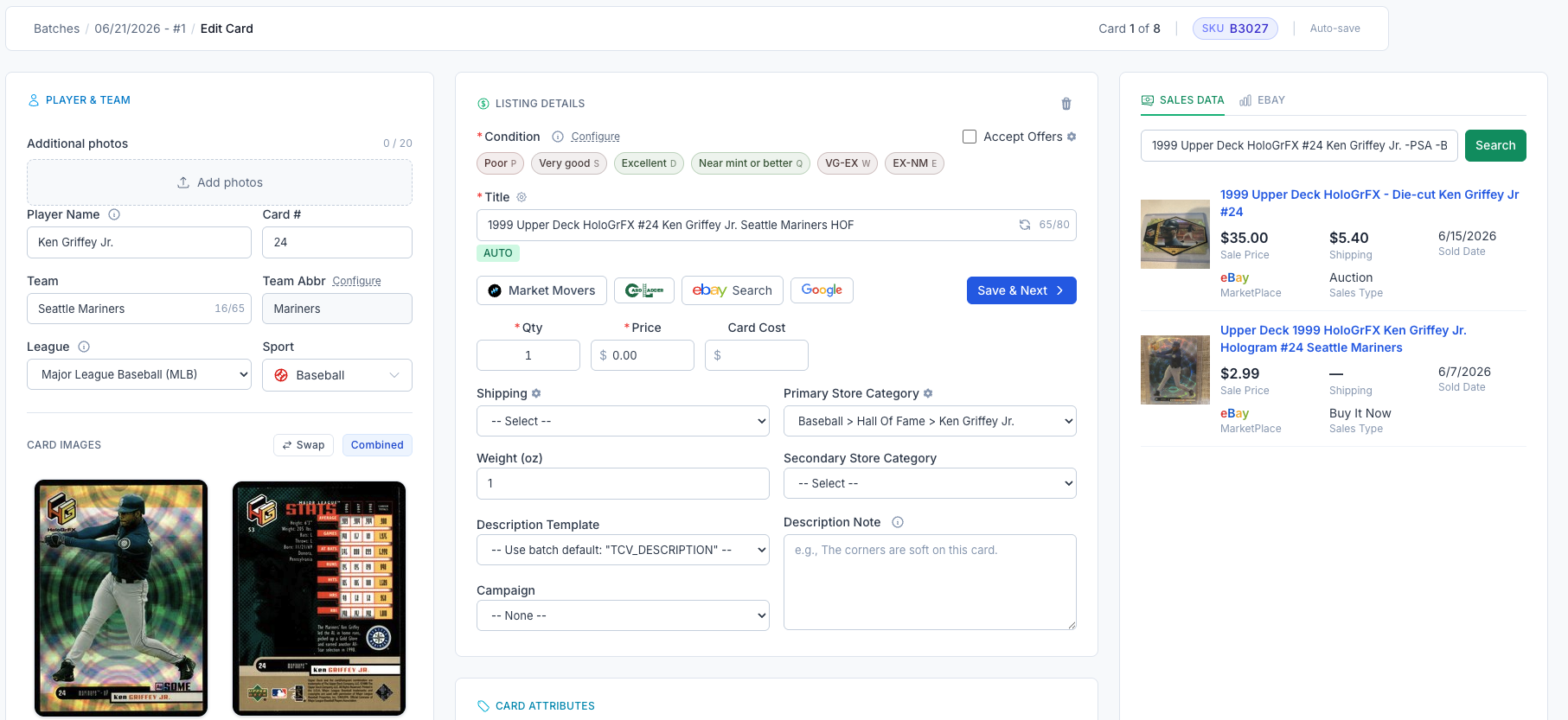
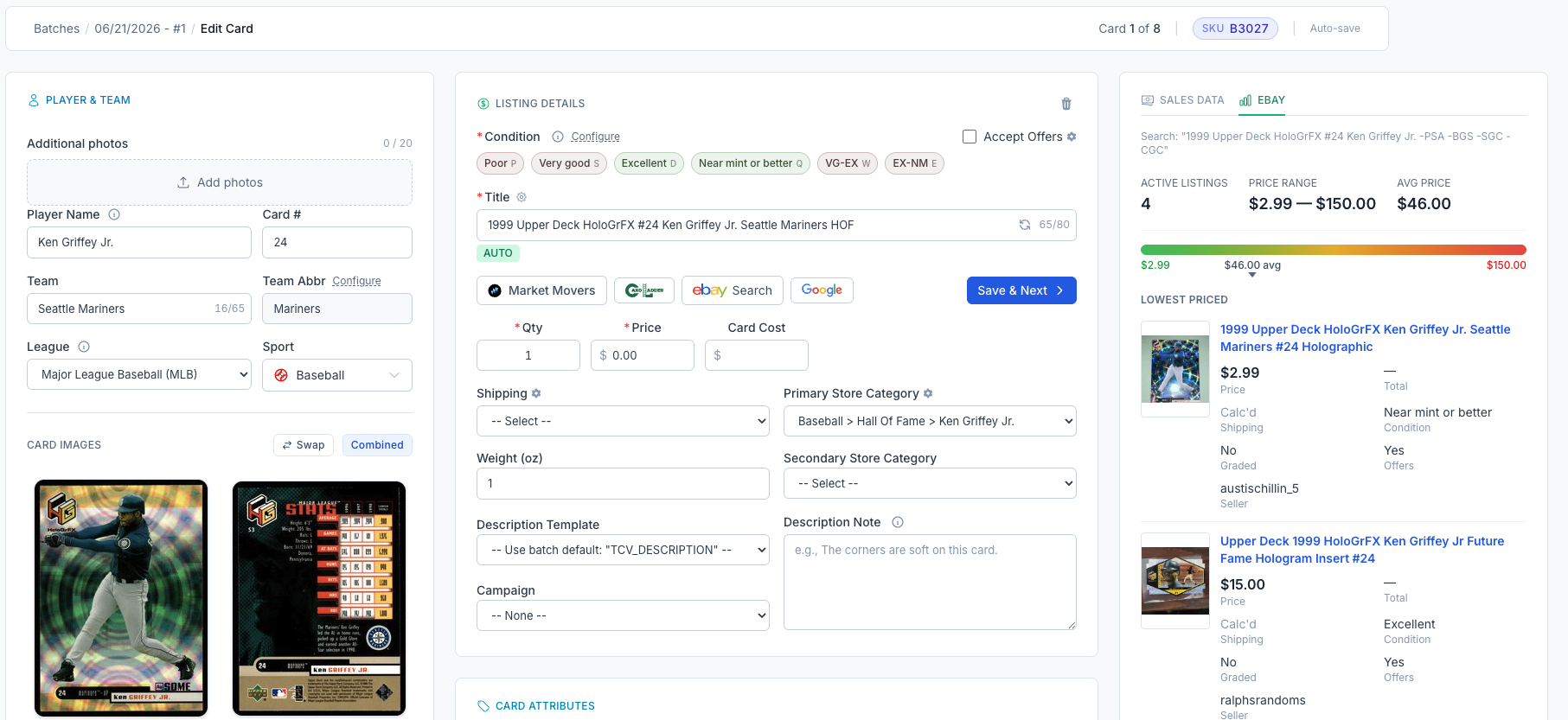
CardLuma puts the market in the same screen where you set the price. Two views, side by side with the card: Sales Data — what the card actually sold for — and eBay — what it’s listed for right now. No tab-switching, no guessing.
Real Sold Comps, Not Asking Prices
The Sales Data tab shows recent completed sales for the card in front of you — sale price, shipping, the date it sold, and whether it went as an auction or Buy It Now. That’s the number that matters: what a buyer actually paid, not what some optimist is hoping for.
Click image to view full size
See the Live Market at a Glance
The eBay tab shows what’s live right now: how many active listings, the full price range, the average, and a color bar that places the card from low to high so you can see where to land. Scroll the lowest-priced listings to read the competition — condition, graded or raw, offers on or off, and who’s selling it.
Click image to view full size
Same Data for Your TCG Singles
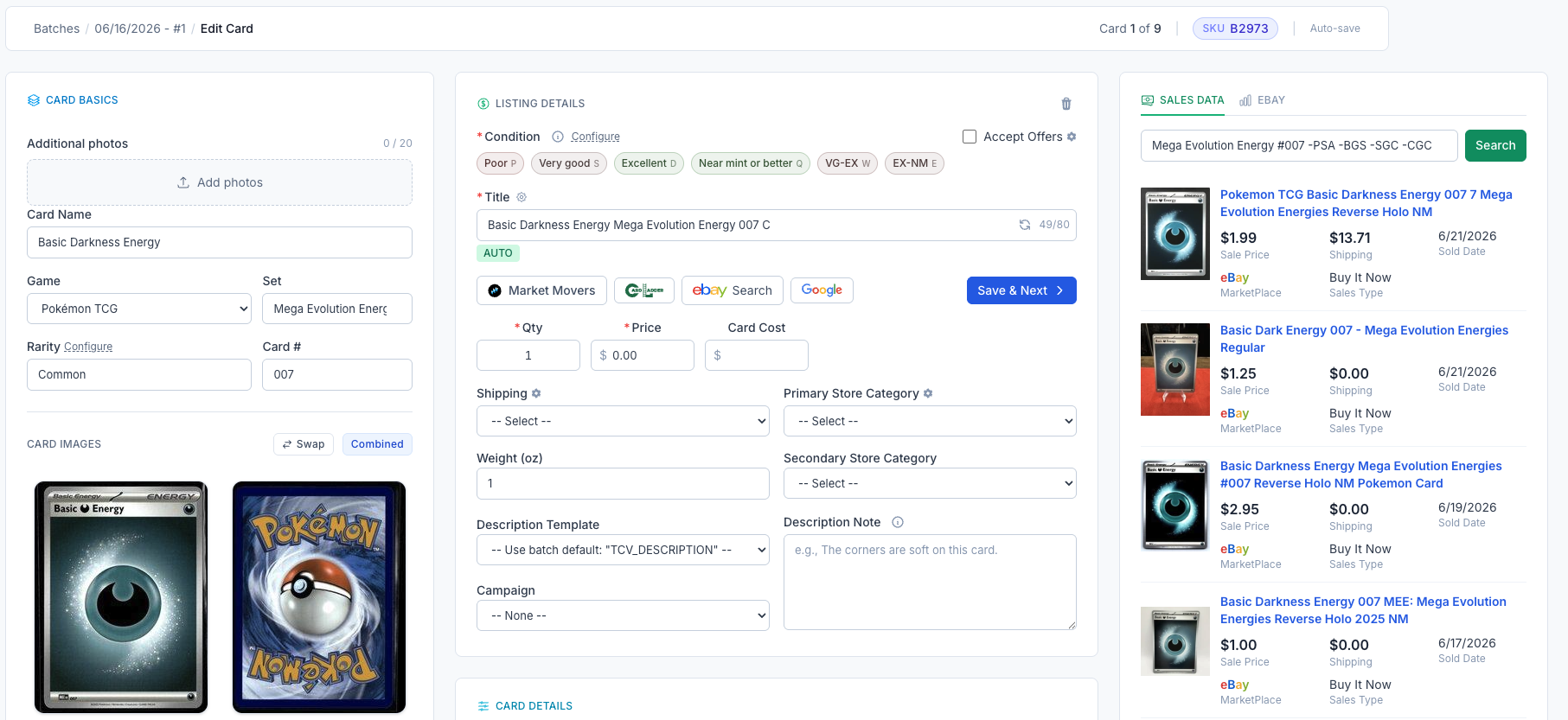
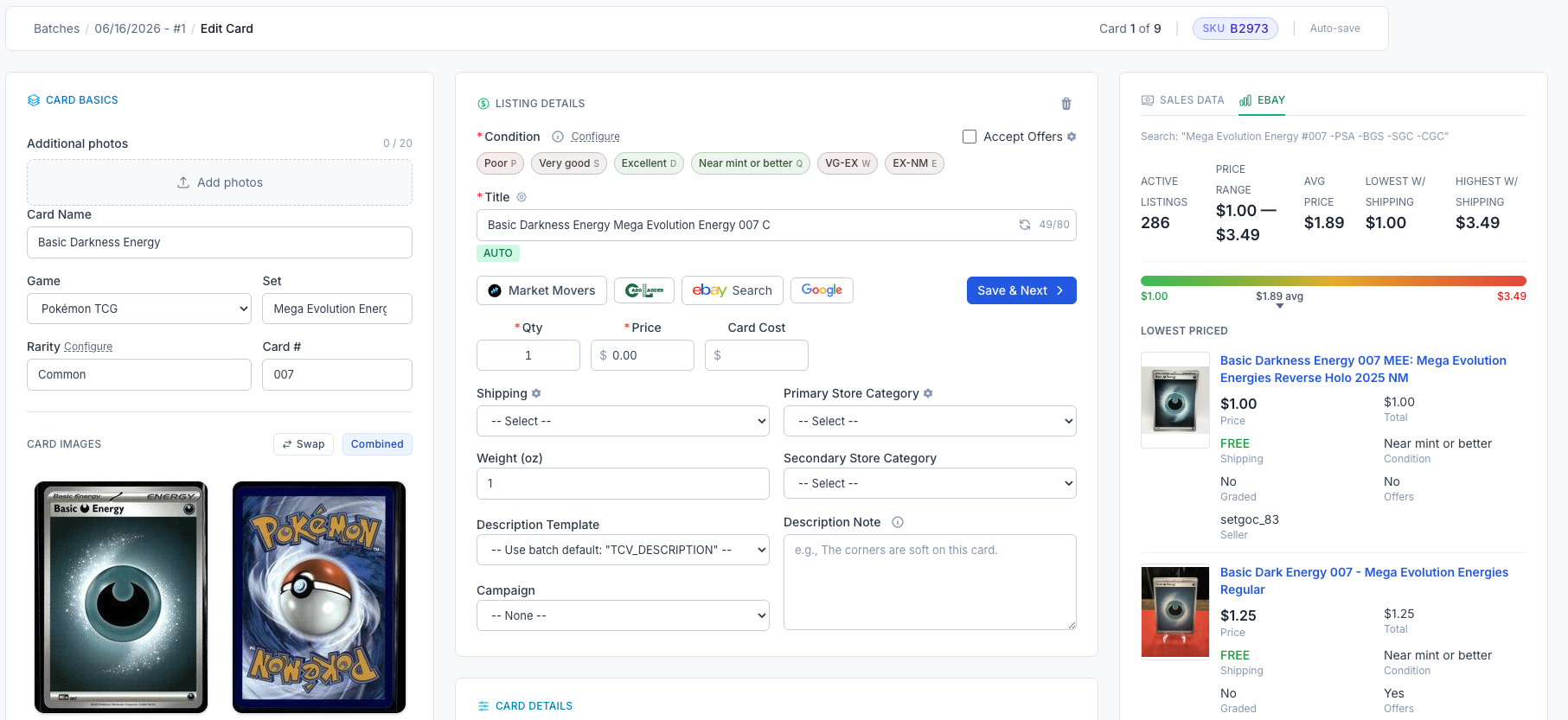
Pokémon, Magic, Yu-Gi-Oh!, and the rest of the games CardLuma supports get the exact same treatment. Scan a Pokémon single and the Sales Data and eBay tabs fill in with sold comps and live listings for that card — price range, average, lowest with shipping, highest with shipping, the whole picture. One pricing workflow across your entire inventory, sports and TCG.
Click either image to view full size
The Price Lands on the Batch Table
Opening every card to read its comps is fine for ten cards and unworkable for two hundred. After identification, CardLuma runs the sold-comp lookup on its own and drops the result into a Pricing column group on the batch table — recommended price, median, average, and last sale, sitting next to the Price field you are about to fill in.
Sort by it. Scan down it. The $15 card in a row of $1.50 commons stops hiding, and you know which cards deserve a closer look before you have opened a single one.
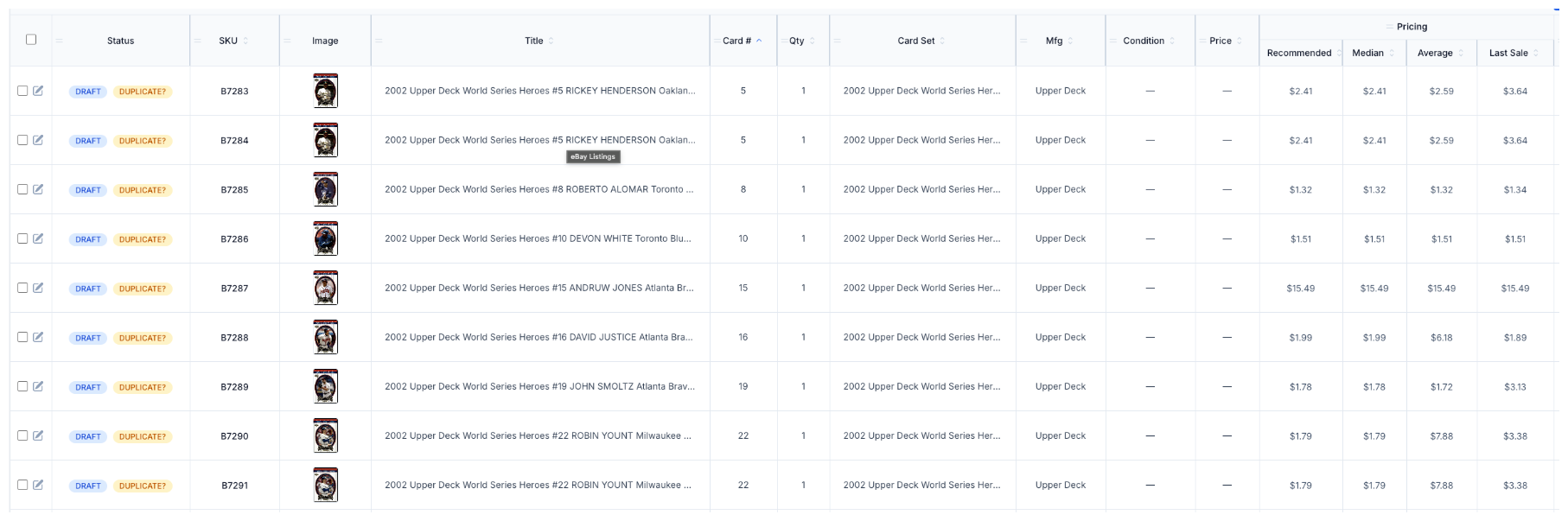
Click image to view full size
Star the Tab You Actually Use
Some dealers price off what sold. Some price off what the competition is asking today. Both are right, and you probably do not switch between them card to card.
Star either Sales Data or eBay and that tab opens by default on every card you edit. One click saved per card is not much. Multiplied by a 200-card batch, it is a real chunk of your listing day.
What each tab searches for is yours to set too — see search templates.

Click image to view full size
Raw Cards Price Off Raw Sales
A PSA 10 sale is not a comp for the raw copy sitting in front of you. Sold-comp lookups on ungraded cards now use ungraded sales only, so a couple of slab sales don’t pull your recommended price to a number a raw buyer won’t pay.
Complete listings, without the cleanup.
Turn scans into eBay-ready listings with the specifics buyers filter on, then reuse clean card data in Whatnot workflows.