
Decide how CardLuma searches for comps.
Pricing data is only as good as the search behind it. Search too broad and you are pricing off cards that are not yours. Search too narrow and you get three results and no read at all. Now the search itself is a template you can see and edit.
A Search Tab Next to Titles and Descriptions
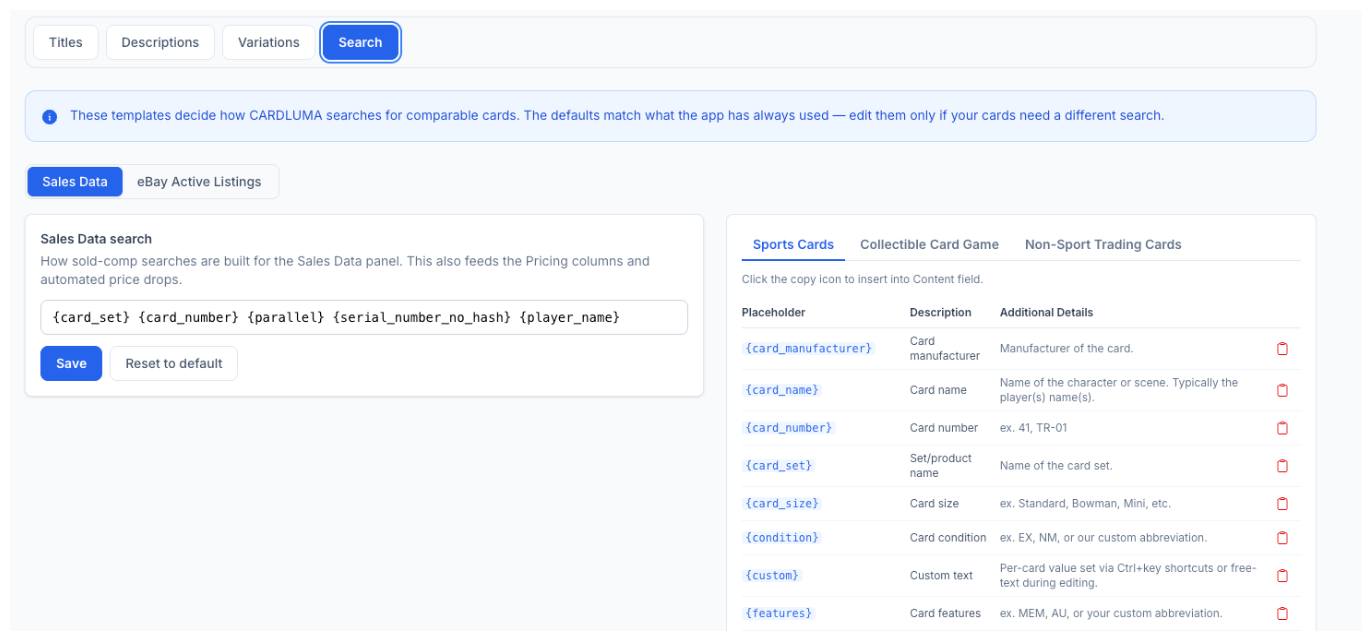
Settings → Templates has a new Search tab, right alongside Titles, Descriptions, and Variations. Same idea as the templates you already build listings with: placeholders in, a real string out — except this one builds the query CardLuma runs to find comparable cards.
The defaults match what the app has always used. Nothing changes until you decide it should, and a Reset to default button puts it back if an edit does not pan out.
Click image to view full size
Two Searches, Two Jobs
The Sales Data template drives sold-comp searches. That is the Sales Data panel on the card edit screen, the Pricing columns on the batch table, and automated price drops. It is the number a buyer actually paid, so it is worth getting the query right.
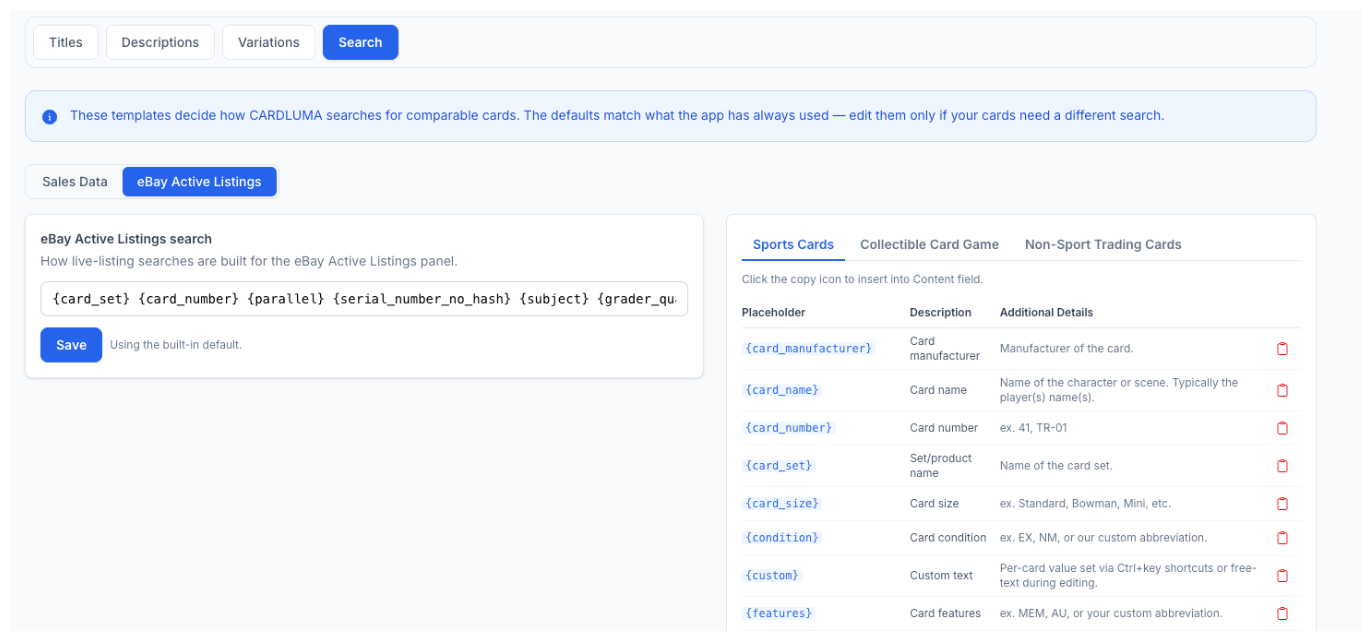
The eBay Active Listings template drives the live-listing search — what the card is listed for right now, and who you are competing with. Different job, different template, edited separately.
Click image to view full size
Built From Your Card Data
The template is placeholders, not typing. {card_set}, {card_number}, {parallel}, {serial_number_no_hash}, {player_name}, {grader}, {condition}, {features} — the same field names you already use in titles and descriptions. The reference table sits right next to the field with a copy icon on every row.
Sports Cards, Collectible Card Game, and Non-Sport Trading Cards each get their own placeholder set, because the fields that identify a Pokémon single are not the fields that identify a 1989 Bowman common.
When You’d Actually Change It
- Serial numbers are killing your result count. Drop
{serial_number_no_hash}out of the Sales Data search and price off the parallel instead of the exact print run. - Graded cards need the grade in the query. A PSA 10 and a raw copy of the same card are two different markets. Put
{grader}and the grade in the search and the comps stop lying to you. - Your set names run long. Trim the template down to the parts of the name eBay sellers actually type, and the search stops returning nothing.
- Your niche prices on a different attribute. Non-sport and CCG cards often key off the card name or the game rather than a player. Build the search around the field that matters for what you sell.
Comps You Can Trust Start With the Query
Every dealer has opened eBay, typed a search, and thrown out half the results before reading a price. That instinct is worth encoding. Set the search once, per card type, and every card that comes through the pipeline gets priced off the right pool instead of whatever a generic query happened to return.
Pair it with live sold comps and active listings in the card edit screen and the pricing pass stops being a tab-switching exercise.
Card Ladder and Market Movers, Too
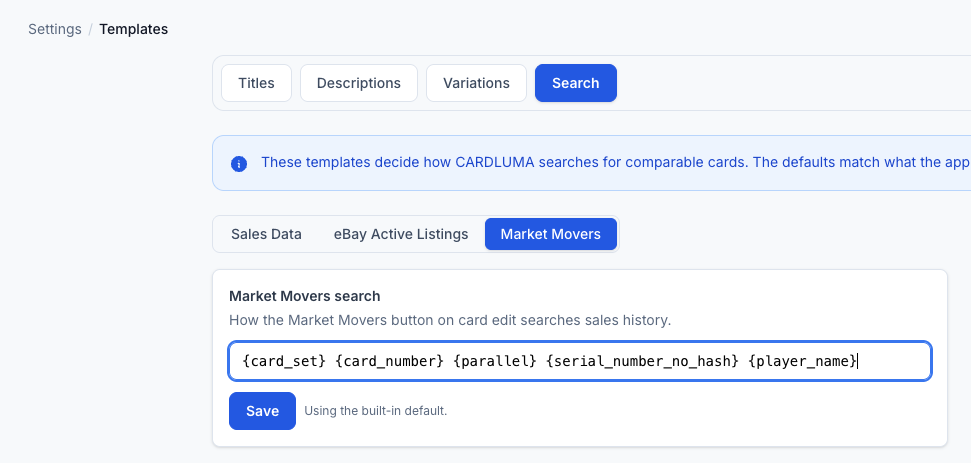
Same idea as the Sales Data and eBay templates: the search CardLuma builds when you jump to Card Ladder or Market Movers is now yours to edit under Settings. If a lookup keeps landing on the wrong set or dragging in every parallel, fix the search once instead of fixing the results every time.
Click image to view full size
Complete listings, without the cleanup.
Turn scans into eBay-ready listings with the specifics buyers filter on, then reuse clean card data in Whatnot workflows.