
Store Category Automation
A messy store costs you sales. When a buyer lands on your eBay shop and sees 2,000 cards dumped into a single category, they leave. They don’t dig. They don’t browse. They bounce.
Store Category Automation keeps your inventory sorted so buyers find what they’re looking for — and stick around long enough to buy more. Set your rules once, and every card gets filed into the right category automatically. You build the logic, then stop thinking about it.
Priority Rules That Do the Sorting
eBay store categories exist for a reason — they turn a wall of inventory into a browsable shop. The problem is actually using them when you’re grinding through a stack of 400 cards.
CardLuma applies your rules automatically. A 1955 Bowman goes into 1955 Bowman. A Baseball HOF card lands in Baseball Hall of Fame. You don’t manually pick categories at 1am on card 347. The system applies your rules consistently, every time, whether you’re sharp or half asleep.
Your store stays organized by default. Your buyers notice.
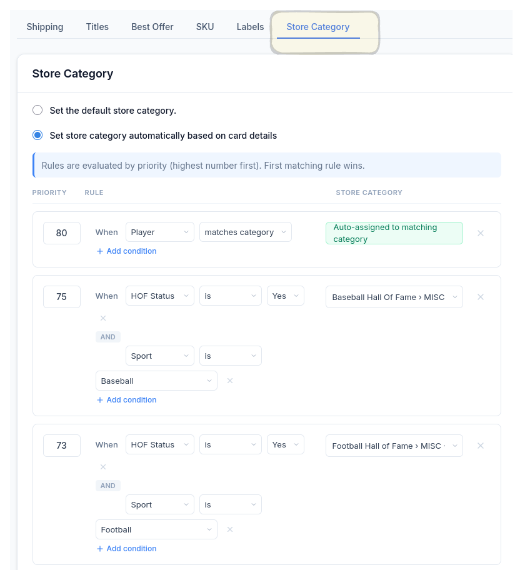
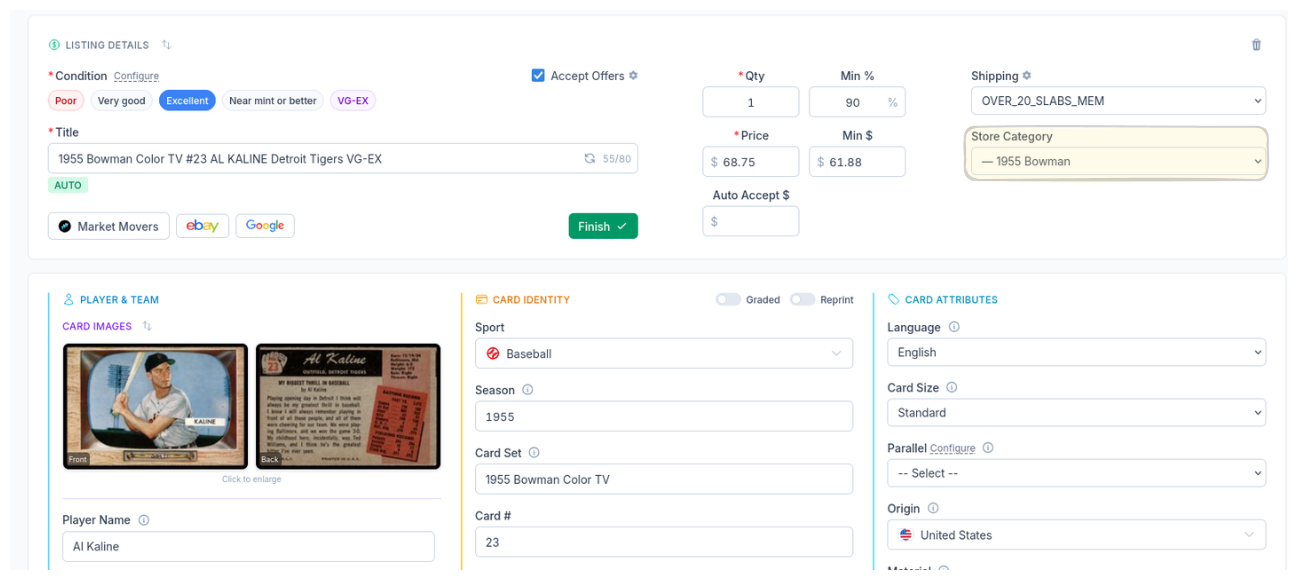
The Result: Every Card, Filed Correctly
When you open a card, the store category is already set. Your rules ran before you got there. No dropdown hunting, no second-guessing, no cards floating in “Uncategorized” where nobody will ever find them.
Organized stores get more page views per visit. More page views mean more add-to-carts. This isn’t cosmetic — it’s how you turn a single-card buyer into a multi-card buyer.
Pair this with Store Category Sync to pull your full eBay category tree into CardLuma, then let automation handle the rest.
Match Team Names Straight to Your Categories
Most dealers who sort by team end up building the same rule thirty times — Eagles to Eagles, Cowboys to Cowboys, Chiefs to Chiefs. It works, and it’s an afternoon you never get back.
Set the condition to Team matches category instead. One rule: when the sport is Football and the card’s team matches one of your store categories, the card is auto-assigned to that category. Thirty rules collapse into one, and adding a new team category to your store doesn’t mean writing a new rule.
Your secondary store category can be assigned by these rules too, so a card can land in both “2024 Prizm” and “Eagles” without you touching a dropdown. If you carry thousands of active listings, store categories are how buyers navigate your inventory. Set the rules once. CardLuma organizes the inventory while you list it.

Click image to view full size
Teams That Moved, and Categories Named Your Way
Oakland to Las Vegas, St. Louis to Los Angeles, Montreal to Washington. Team matching follows the franchise through the move, so the old city on the card still matches the team in your store categories.
If your category is “Baseball – New York Yankees” or “Yankees Cards,” the matcher finds the team inside the category name and matches it. Your categories don’t have to be named exactly the way the team is.
Complete listings, without the cleanup.
Turn scans into eBay-ready listings with the specifics buyers filter on, then reuse clean card data in Whatnot workflows.